Effectively managing time is crucial for success in today’s fast-paced world. This comprehensive guide delves into how Google Calendar can revolutionize your time management strategies, offering a structured and adaptable system for scheduling, prioritizing, and optimizing your daily tasks. We’ll explore practical techniques and detailed explanations, empowering you to achieve a more balanced and productive lifestyle.
From setting up your Google Calendar account to leveraging advanced features like time blocking and integrations with other productivity tools, this guide provides a step-by-step approach. We’ll also address potential challenges and offer solutions to help you seamlessly integrate Google Calendar into your existing routines.
Introduction to Time Management with Google Calendar
Effective time management is a crucial skill for achieving personal and professional goals. It involves strategically planning, organizing, and executing tasks to maximize productivity and minimize wasted time. A well-structured approach to time management ensures that tasks are completed efficiently, deadlines are met, and stress is reduced. This involves understanding your priorities, setting realistic goals, and utilizing tools that optimize your workflow.Google Calendar, a widely used digital scheduling tool, offers powerful features to support time management.
It provides a centralized platform for managing appointments, deadlines, and tasks, promoting better organization and enabling users to visualize their schedules and plan ahead. By integrating Google Calendar into your workflow, you can gain a clear understanding of your time commitments, reducing the risk of overcommitment and improving overall efficiency.
Setting Up a Google Calendar Account
Setting up a Google Calendar account is a straightforward process. First, ensure you have a Google account (Gmail, Google Drive, etc.). If not, you can easily create one. Then, navigate to the Google Calendar website. Click on “Create Account” or “Sign In” if you already have an account.
Follow the prompts to complete the registration. This involves providing your desired username, password, and other necessary details. Once logged in, you’ll have access to your personal Google Calendar.
Benefits of Using Google Calendar for Time Management
Utilizing Google Calendar offers numerous advantages in time management. Centralized scheduling allows for a clear overview of appointments and deadlines. This overview facilitates efficient planning and helps avoid scheduling conflicts. The ability to share calendars enables collaboration with colleagues or team members, promoting smoother project execution. Reminders and notifications ensure timely completion of tasks and reduce the risk of missing appointments or deadlines.
This proactive approach helps maintain a structured workflow, leading to improved efficiency and productivity.
Comparison of Traditional Time Management Methods and Google Calendar
| Feature | Traditional Time Management | Google Calendar ||—|—|—|| Scheduling | Relies on paper calendars, notebooks, or phone reminders. | Offers a digital platform for scheduling appointments, tasks, and events. || Organization | Often involves manual organization and can be prone to errors. | Provides a centralized, visual representation of schedules, allowing for better organization and easier access.
|| Collaboration | Collaboration can be challenging and time-consuming. | Enables seamless sharing and collaboration through shared calendars. || Reminders | Reminders are often missed or forgotten. | Provides customizable reminders and notifications to ensure timely completion of tasks. || Flexibility | Limited flexibility in adjusting schedules.
| Offers flexibility in adjusting schedules and managing appointments dynamically. || Accessibility | Access is limited to the physical location of the calendar or notebook. | Accessible from any device with internet access, providing flexibility and mobility. |Traditional methods, while effective in certain contexts, often lack the centralized organization, collaboration features, and accessibility offered by Google Calendar. Google Calendar’s digital nature significantly enhances time management by streamlining the scheduling process and facilitating seamless collaboration.
This improved organization results in a more efficient workflow and helps to avoid potential errors or missed deadlines.
Creating and Managing Events
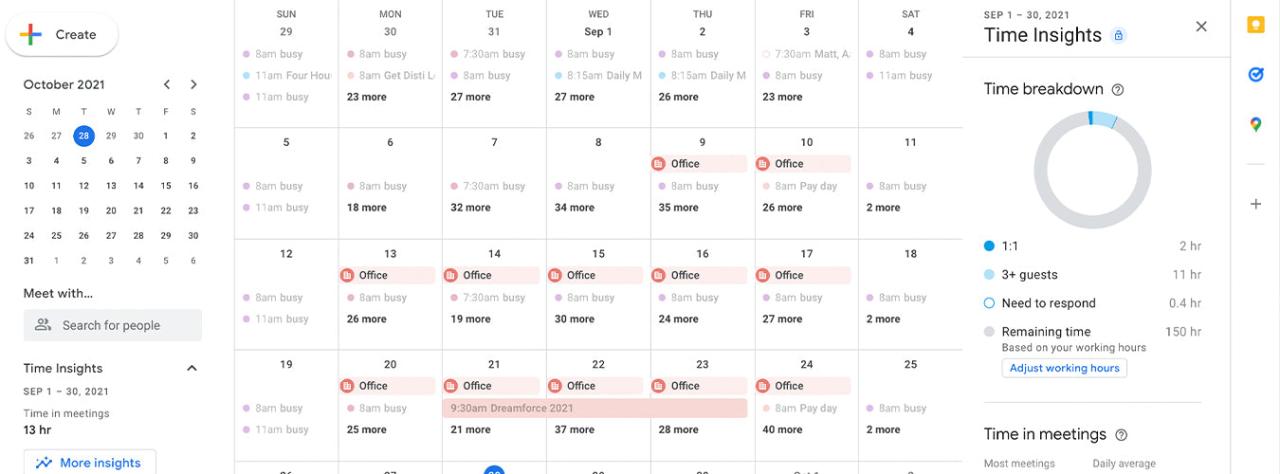
Effective time management hinges on accurately scheduling and organizing appointments and tasks. Google Calendar offers a robust system for this, allowing users to structure their schedules efficiently and maintain a clear overview of commitments. This section delves into the practical methods for creating, managing, and customizing events within Google Calendar.Creating a structured approach to scheduling appointments and meetings is crucial for optimal time management.
A well-defined process ensures that important engagements are not missed and that all relevant information is readily available. This approach facilitates a smooth workflow and reduces potential conflicts or misunderstandings.
Scheduling Appointments and Meetings
A structured approach to scheduling appointments and meetings involves several key steps. First, clearly define the purpose of the appointment or meeting. This helps in determining the necessary duration and relevant attendees. Second, allocate a specific time slot in your calendar for the event. Consider the availability of all attendees when selecting the time.
Third, use descriptive titles and concise descriptions for each event to provide clear context. This aids in quick identification and understanding of the appointment’s nature. Finally, communicate the details of the scheduled event to all participants to ensure everyone is aware of the time and location.
Recurring Events
Recurring events in Google Calendar are a powerful tool for automating routine activities. This feature significantly simplifies the process of scheduling events that repeat on a specific schedule, such as weekly meetings, monthly bill payments, or daily exercise routines. This automation frees up time that would otherwise be spent on repetitive scheduling.
Event Options
Google Calendar offers various event options to enhance its functionality. These options provide a flexible and customizable experience. These include:
- Location: Specifying the location of an event helps in easily locating the meeting place and avoiding travel complications. This ensures that participants know the exact meeting point and reduces any ambiguity.
- Reminders: Setting reminders helps avoid missing important appointments. These reminders can be set for a specific time before the event or even on the day of the event. This is critical for preventing missed appointments and ensuring timely attendance.
- Descriptions: Including detailed descriptions provides essential context for each event. This may include specific tasks, goals, or important information related to the meeting or appointment. A detailed description helps individuals prepare for the event.
Managing Multiple Calendars
Managing multiple calendars simultaneously allows users to organize different aspects of their lives. This can include work, personal, and family schedules. This approach allows for a comprehensive overview of all commitments and responsibilities. Google Calendar allows for the addition and management of multiple calendars. This functionality allows for clear segregation of different activities and commitments, providing a complete view of the user’s schedule.
Using Colors for Differentiation
Utilizing different colors for events allows for a clear visual distinction between various tasks or commitments. This feature enhances organization and facilitates a quicker comprehension of the schedule. By assigning specific colors to different types of events, users can quickly identify and prioritize tasks, meetings, or appointments.
- Color-coding strategy: Assign specific colors to recurring events, such as work meetings, personal appointments, or social engagements. This approach helps to visually separate and categorize events.
- Example: Assign a specific color for all work-related events, a different color for personal appointments, and a third color for social engagements. This creates a visually distinct and easily navigable schedule.
Task Prioritization and Organization
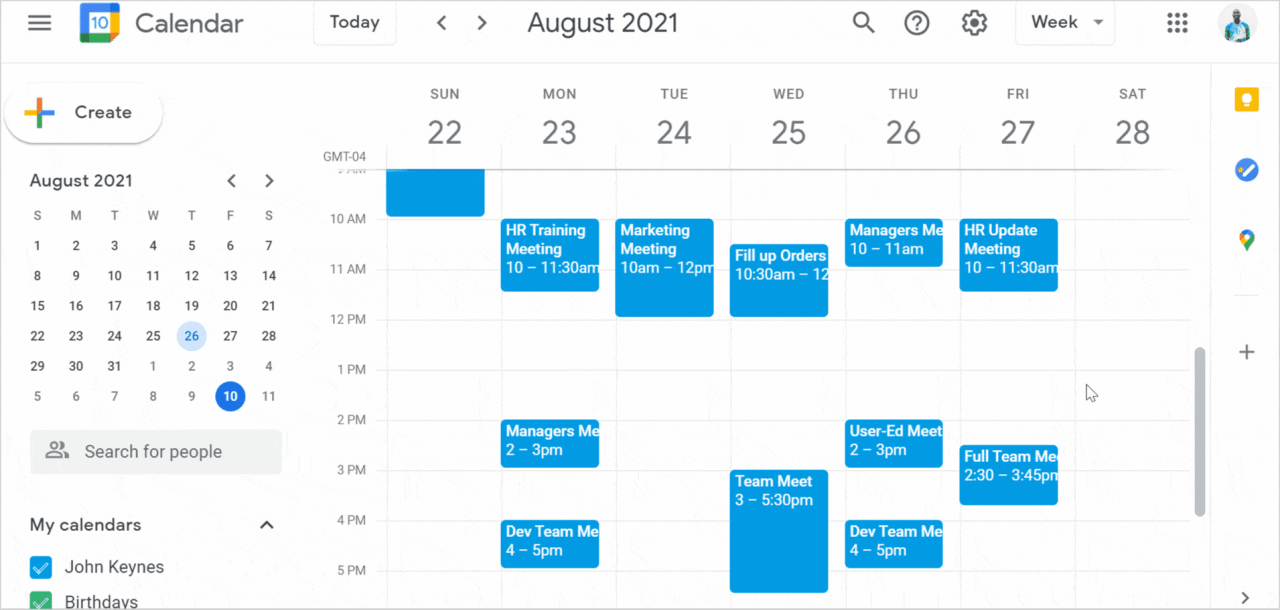
Effective time management hinges on prioritizing tasks and organizing them efficiently. Google Calendar, with its robust features, provides a powerful platform for this. This section will explore strategies for prioritizing tasks and deadlines, categorizing tasks for better organization, breaking down large tasks, integrating task lists, and building an effective daily/weekly schedule within Google Calendar.Prioritizing tasks is crucial for focusing on the most important activities first.
Categorization ensures that tasks are grouped logically, aiding in quick retrieval and efficient management. Breaking down large tasks into smaller, manageable ones facilitates a smoother workflow and reduces overwhelm. Integrating task lists directly into events allows for a comprehensive view of all related actions. A well-structured daily/weekly schedule within Google Calendar will streamline your daily workflow and help achieve goals effectively.
Prioritizing Tasks and Deadlines
Identifying the most important tasks is a critical step in time management. This involves evaluating the urgency and importance of each task. The Eisenhower Matrix, a popular prioritization tool, categorizes tasks into four quadrants: urgent and important, important but not urgent, urgent but not important, and neither urgent nor important. By using this matrix, you can effectively focus on tasks that directly contribute to your goals.
Setting deadlines for tasks in Google Calendar further emphasizes their importance and creates a sense of urgency. Clearly defined deadlines help ensure that tasks are completed on time.
Categorizing Tasks for Better Organization
Categorizing tasks facilitates better organization and retrieval. Using tags or labels within Google Calendar is an effective way to group tasks. These tags can be color-coded for visual distinction. For example, tasks related to work can be tagged with a “Work” label, while personal tasks can be tagged with a “Personal” label. This allows for quick filtering and retrieval of tasks based on their category.
Additionally, consider using custom fields within your calendar to create detailed classifications.
Breaking Down Large Tasks
Large tasks can be overwhelming and lead to procrastination. Breaking down these tasks into smaller, more manageable sub-tasks is a crucial strategy. This approach makes the overall task seem less daunting and allows for a more focused, incremental progress. Consider creating a checklist within a Google Calendar event to track progress on sub-tasks. For example, a “Project X” event could have sub-tasks like “Research,” “Drafting,” “Review,” and “Finalization.” This visual representation of the work ahead will provide a sense of accomplishment as each sub-task is completed.
Incorporating Task Lists into Google Calendar Events
Task lists within Google Calendar events allow for a comprehensive view of all related actions. Use the “Reminders” feature in Google Calendar to schedule reminders for important sub-tasks within the event. This ensures that you stay on track with your planned activities. Furthermore, incorporating sub-tasks as separate events with deadlines ensures you have a clear picture of the schedule for all the components of a larger task.
Template for an Effective Daily/Weekly Schedule
A well-structured daily/weekly schedule in Google Calendar can significantly improve time management. A template should include designated blocks of time for different tasks, including work, personal commitments, and relaxation. For example, allocate specific time slots for meetings, appointments, and focused work sessions. Also, incorporate recurring events for tasks that need to be performed regularly. Consider using color-coding for different types of events (e.g., work meetings, social events, personal tasks).
A clear, well-organized schedule will provide a clear roadmap for your day and week, leading to greater efficiency and productivity.
Utilizing Calendar Features for Productivity

Leveraging Google Calendar’s comprehensive features is crucial for effective time management. Beyond scheduling appointments, Google Calendar offers a suite of tools that streamline tasks, enhance collaboration, and boost overall productivity. This section will explore these powerful features, providing practical guidance for maximizing their potential.
Google Calendar’s Notification System
Google Calendar’s notification system plays a vital role in keeping you informed about upcoming events and deadlines. This proactive approach helps prevent missed appointments and ensures timely completion of tasks. A well-configured notification system can significantly reduce stress and enhance your overall efficiency.
Reminders for Staying on Track
Reminders are a fundamental element of Google Calendar’s notification system. They provide a crucial layer of support to ensure that you remain on schedule. By setting reminders for appointments, meetings, and deadlines, you can proactively avoid delays and maintain a consistent workflow. Reminders can be configured for various timeframes, ranging from a few minutes to several days before the event.
This flexibility allows you to tailor reminders to individual needs and preferences. For instance, a meeting reminder set 15 minutes prior can help you arrive punctually, while a deadline reminder a week before can help you start planning and executing the task.
Color-Coding for Task Organization
Color-coding is a powerful organizational tool in Google Calendar. By assigning distinct colors to different types of events, meetings, or tasks, you can quickly identify and categorize entries. This visual representation facilitates a more streamlined workflow. For example, you can assign a specific color to work-related events, another to personal appointments, and yet another to project deadlines.
This visual cue aids in quickly understanding the nature of an event and its importance.
Sharing Calendars for Collaboration
Sharing calendars is a critical aspect of teamwork and collaboration. By sharing your calendar with colleagues, clients, or team members, you enable seamless communication and coordination. This transparency fosters better planning and facilitates effective communication. This feature is invaluable for scheduling joint projects, coordinating meetings, or simply keeping everyone informed about your availability. For instance, sharing calendars is essential for project teams, enabling members to see each other’s schedules and coordinate meeting times efficiently.
Integrating Other Applications
Google Calendar seamlessly integrates with numerous other applications. This integration allows for a more holistic approach to managing your schedule and tasks. For example, you can import tasks from your to-do list app into your calendar, or link your calendar to project management software to track progress. This feature offers a streamlined workflow by consolidating your tasks in one central location.
This consolidation reduces the need to switch between applications and helps keep all your information in one place.
Managing Conflicts and Flexibility
Effective time management hinges on adaptability and the ability to navigate unexpected events and schedule conflicts. A rigid schedule, while seemingly organized, can lead to frustration and decreased productivity when unforeseen circumstances arise. Learning to adjust and incorporate flexibility into your time management strategy is crucial for maintaining a healthy work-life balance and achieving your goals.Flexibility in time management is essential for accommodating unforeseen circumstances.
These may include last-minute requests, urgent issues, or unexpected delays. Embracing flexibility allows you to remain productive and responsive to changing demands, preventing stress and maintaining a sense of control over your schedule.
Handling Unexpected Events and Schedule Conflicts
Anticipating potential conflicts and developing strategies for addressing them is a proactive approach to time management. Proactive planning involves identifying potential disruptions and building contingency plans. This could include setting aside buffer time, or creating backup options for tasks.
- Prioritize tasks: Evaluate the urgency and importance of each task to determine which can be adjusted or postponed in case of unexpected events. This prioritization will help you make informed decisions about which tasks to adjust, ensuring that critical tasks are completed first. For example, if a meeting runs over, you can re-schedule less critical tasks.
- Communicate effectively: Open communication with colleagues, clients, or other stakeholders is crucial for informing them of any schedule adjustments or potential delays. Clear and timely communication prevents misunderstandings and allows for smoother transitions.
- Build buffer time: Incorporating buffer time into your schedule allows for unexpected delays or changes. This buffer provides a safety net, enabling you to adjust your plans without disrupting your overall schedule. For example, if a meeting is scheduled for 2 hours, allocating 2.5 hours allows for potential delays and ensures you finish on time.
- Develop contingency plans: Anticipate potential disruptions and have backup plans in place. This could include identifying alternative tasks or resources to complete in case of unexpected circumstances.
Adjusting Events and Tasks on Google Calendar
Google Calendar offers tools for adjusting events and tasks with ease. Knowing how to modify your calendar entries is essential for adapting to unexpected situations.
- Editing Events: Google Calendar allows you to easily modify event details, such as time, date, location, and attendees. You can use the calendar’s editing tools to adjust events to accommodate schedule conflicts or changes.
- Rescheduling Events: Rescheduling events is a simple process in Google Calendar. You can quickly move events to different times or dates, and Google Calendar will often automatically update related events or reminders.
- Deleting Events: Delete events that are no longer needed or have been rescheduled. This helps keep your calendar organized and avoids confusion.
Creating Buffer Time in Your Schedule
Buffer time is crucial for maintaining flexibility and preventing schedule overruns. It provides a safety net for unexpected events or delays.
- Estimate realistic time: Accurately estimate the time needed for each task. Overestimating slightly is better than underestimating, ensuring you have buffer time for unexpected delays. A buffer can help accommodate unforeseen circumstances and ensure tasks are completed on time.
- Build in flexibility: Allocate extra time between tasks or events to account for potential delays. This allows you to adjust your schedule without feeling rushed or stressed.
- Example: If a task typically takes 1 hour, allocate 1.5 hours to account for potential interruptions or unforeseen circumstances. This extra time allows for a smoother workflow.
Utilizing Google Calendar’s “Busy” and “Free” Views
Google Calendar’s “Busy” and “Free” views are valuable tools for scheduling and conflict avoidance. These views help visualize your schedule and identify available time slots.
- “Busy” View: The “Busy” view displays all scheduled events and commitments. It provides a clear picture of your current availability and helps you avoid scheduling conflicts.
- “Free” View: The “Free” view displays available time slots. This view helps you find open periods for appointments or tasks. By visualizing your free time, you can better allocate your schedule effectively.
Integrating Google Calendar with Other Tools
Expanding your time management toolkit by seamlessly connecting Google Calendar with other productivity apps enhances your overall efficiency. This integration streamlines tasks, centralizes information, and fosters a more interconnected workflow. Leveraging these connections empowers you to manage your schedule with greater ease and effectiveness.By linking your calendar to other applications, you create a unified system for tracking deadlines, appointments, and projects.
This reduces the risk of missed deadlines and ensures a comprehensive view of your commitments, ultimately promoting better time management.
Connecting Google Calendar with Productivity Apps
Integrating Google Calendar with various productivity apps, such as to-do list applications and project management software, provides a comprehensive overview of your schedule and tasks. This unified view facilitates better organization and reduces the chance of missed deadlines. Many apps offer seamless integrations with Google Calendar, enabling effortless task synchronization.
- To-do List Apps: Many to-do list applications allow you to directly import tasks from Google Calendar or create tasks linked to appointments. This ensures that your to-do list accurately reflects your schedule, minimizing the chance of overlooking crucial items.
- Project Management Tools: Several project management platforms integrate with Google Calendar, allowing you to link tasks and deadlines directly to your schedule. This enables better project visualization and tracking, and allows for easy updates and collaboration with team members.
Calendar Integrations and Benefits
Various apps offer integrations with Google Calendar, offering distinct advantages. These integrations enhance productivity by streamlining workflows and improving organization.
- Effortless Task Synchronization: Linking Google Calendar with other applications synchronizes tasks and deadlines across platforms, eliminating the need to manually update information in multiple places. This minimizes the risk of errors and ensures all commitments are reflected in your schedule.
- Centralized Information Hub: Integrating various apps with Google Calendar creates a central hub for all your commitments and deadlines. This streamlined approach fosters better organization and enables a more comprehensive view of your schedule.
- Improved Time Management: By centralizing your tasks and deadlines, Google Calendar integration enhances your ability to manage time effectively. This unified approach facilitates better planning and execution of tasks, resulting in a more organized and productive workflow.
Sharing Calendars with Colleagues
Sharing calendars with colleagues or team members is essential for coordinating schedules and facilitating collaboration. This streamlined approach enables seamless communication and efficient scheduling, improving overall productivity.
- Enhanced Collaboration: Sharing calendars with colleagues allows for transparent scheduling and ensures everyone is aware of commitments and availability. This fosters better coordination and minimizes conflicts or misunderstandings.
- Effective Communication: By sharing calendars, team members can easily visualize each other’s schedules, leading to more effective communication and better coordination of activities.
- Simplified Scheduling: Sharing calendars simplifies the process of scheduling meetings and appointments, as everyone can readily see each other’s availability.
Utilizing Google Calendar for Time Zones
Google Calendar facilitates seamless scheduling and coordination across different time zones. This tool allows for effective scheduling and communication regardless of geographical differences.
- Global Collaboration: For teams or individuals working across different time zones, Google Calendar simplifies scheduling and communication by providing a standardized platform for managing appointments and meetings, regardless of time zone differences.
- Accurate Scheduling: Google Calendar automatically adjusts time zone settings, ensuring that everyone is on the same page regarding scheduling and meeting times, irrespective of their geographical location.
- Effective Communication: By displaying events in the appropriate time zone, Google Calendar enables effective communication and coordination between individuals working across different time zones.
Best Practices for Linking Tools
Implementing best practices when linking Google Calendar to other tools optimizes workflow and enhances productivity. These guidelines streamline your calendar usage and improve overall time management.
- Regular Synchronization: Ensure regular synchronization of your Google Calendar with other integrated applications to maintain accurate information across all platforms.
- Clear Naming Conventions: Use consistent and descriptive names for events and tasks to improve clarity and organization within Google Calendar.
- Utilize Calendar Features: Take advantage of Google Calendar’s features, such as reminders and color-coding, to enhance the visibility and organization of your schedule.
Advanced Time Management Techniques
Mastering time management involves more than just scheduling appointments. Advanced techniques delve into optimizing focus, maximizing efficiency, and proactively addressing potential roadblocks. These methods leverage strategies for focused work, structured review, and integrated tools to elevate your productivity.Effective time management isn’t just about filling your schedule; it’s about strategically allocating your time to accomplish specific goals and objectives.
These advanced techniques are crucial for those seeking to improve their efficiency and achieve greater productivity.
Time Blocking
Time blocking is a powerful time management technique where you allocate specific blocks of time in your schedule for particular tasks or activities. This structured approach helps maintain focus and prevents task-switching, leading to increased productivity. By dedicating dedicated time slots, you create a clear schedule and minimize distractions.
- Effectiveness: Time blocking’s effectiveness stems from its ability to create a visual representation of your schedule, making it easier to see how your time is allocated. This clarity reduces the mental load of planning and decision-making, allowing you to concentrate on the task at hand. By visualizing your schedule, you also gain a clear overview of your daily commitments and available time slots, leading to better time management.
- Focused Work Time Slots: Creating focused work time slots involves identifying specific blocks of time in your schedule dedicated to concentrated work. These blocks should be free from interruptions and distractions. It is recommended to choose times when you are most productive, minimizing external factors that can impact your focus.
The Pomodoro Technique
The Pomodoro Technique is a time management method that emphasizes focused work in short, timed intervals, typically 25 minutes, followed by short breaks. This structured approach helps maintain concentration and prevent burnout.
- Integration with Google Calendar: The Pomodoro Technique can be easily integrated with Google Calendar by creating recurring events for work sessions and breaks. Set reminders for the start and end of each Pomodoro cycle. This structured approach can improve focus and productivity. For example, a user might schedule a 25-minute recurring event for “Focused Writing” every morning. This recurring event could be color-coded to distinguish it from other tasks.
Timeboxing
Timeboxing is a time management strategy that involves allocating specific time slots for particular tasks or projects. This method ensures that each task receives the necessary attention and avoids the tendency to overestimate how long tasks will take.
- Benefits: Timeboxing offers numerous benefits, including improved task completion rates, reduced procrastination, and a more realistic understanding of task durations. This technique promotes better time management and enhanced productivity. This method is particularly useful for complex projects, where the scope of work might not be readily apparent.
Weekly Schedule Review
Regularly reviewing your schedule is vital for ensuring you’re on track and making necessary adjustments. This review helps identify potential conflicts and ensures that your schedule aligns with your goals.
| Date | Time | Task | Priority | Notes |
|---|---|---|---|---|
| Monday | 9:00 AM – 10:00 AM | Project Proposal Draft | High | Review existing materials and gather data. |
| Monday | 10:00 AM – 11:00 AM | Client Meeting | High | Prepare presentation and meeting materials. |
- Structured Format: A structured format for reviewing your Google Calendar schedule involves creating a dedicated calendar entry or sheet for weekly reviews. This entry should include columns for the day, time, task, priority, and notes. This structured approach allows you to easily track your progress and identify any necessary adjustments to your schedule. This process will enable you to anticipate potential conflicts and allocate time effectively.
Troubleshooting and Optimization

Effective time management relies heavily on a smoothly functioning Google Calendar. Troubleshooting common issues and optimizing your calendar usage are crucial for maximizing productivity. This section details strategies to address potential problems and enhance your overall time management experience.
Common Google Calendar Issues
Many users encounter minor hiccups when using Google Calendar. These issues can range from notification problems to synchronization difficulties, impacting the overall effectiveness of the tool. Understanding these common issues and their solutions can significantly improve your experience.
- Recurring Event Errors: Recurring events may not update correctly, or occasionally fail to display future instances, potentially leading to missed appointments or tasks.
- Notification Issues: Reminders for events might not be sent as expected, resulting in late arrivals or forgotten commitments.
- Synchronization Problems: Data discrepancies between your local calendar and the Google Calendar server can lead to confusion and potential errors in scheduling.
- Calendar Overload: A cluttered calendar can make it difficult to see important events, potentially leading to scheduling conflicts or missed opportunities.
Managing Reminders and Notifications
Reliable reminders are essential for effective time management. Incorrect settings can lead to missed events, so precise configuration is key.
- Verify Reminder Settings: Ensure that the desired notification methods (email, mobile alerts, etc.) are enabled and configured correctly for each event.
- Adjust Reminder Timing: Modify the reminder time for events to accommodate individual needs. Consider using different reminder times for various types of appointments or tasks.
- Check for Silent Modes: Confirm that your device’s silent mode or do-not-disturb settings are not preventing the delivery of reminders.
Troubleshooting Synchronization Problems
Synchronization problems often stem from issues with internet connectivity or account settings. Addressing these problems can ensure your calendar data is consistently updated.
- Verify Internet Connection: Ensure a stable internet connection is maintained to facilitate the synchronization process. Temporary outages can hinder the update of events and tasks.
- Check Calendar Settings: Verify that the calendar is correctly synced with your Google account and the relevant devices.
- Clear Cache and Cookies: Clearing the browser cache and cookies can resolve some synchronization issues. This action can help refresh the data exchange between your calendar and the server.
Improving Google Calendar Usage
Strategies for improving Google Calendar usage involve careful planning and effective organization.
- Color-Coding Events: Assign distinct colors to different types of events or categories to enhance readability and organization. For example, use a specific color for work appointments, another for personal events, and another for meetings.
- Employ Calendar Views: Use various calendar views (daily, weekly, monthly) to efficiently visualize your schedule and identify potential conflicts.
- Create Dedicated Calendars: Establish separate calendars for work, personal appointments, and other important commitments for better organization and clarity.
Optimizing Time Management with Google Calendar
Optimizing Google Calendar usage involves implementing strategies for effective time management.
- Prioritize Tasks: Use Google Calendar to schedule high-priority tasks, allocating sufficient time for their completion.
- Utilize Reminders for Deadlines: Set reminders for deadlines and important events to maintain awareness of approaching tasks.
- Regularly Review Calendar Entries: Regularly review your calendar entries to ensure that events are up-to-date and that potential conflicts are addressed proactively.
Conclusive Thoughts
In conclusion, this guide has equipped you with a powerful toolkit for time management using Google Calendar. By understanding the core principles, implementing the practical strategies, and troubleshooting any potential issues, you’re well-positioned to optimize your schedule, enhance productivity, and ultimately achieve greater control over your time. Embrace the flexibility and power of Google Calendar to create a more organized and fulfilling work and personal life.