This guide provides a comprehensive approach to creating effective weekly schedules within Microsoft Excel. It covers everything from setting up the spreadsheet to advanced techniques for complex scenarios, ensuring you can maximize your productivity and stay organized. Whether you need a personal schedule, a project roadmap, or a team calendar, this guide equips you with the necessary tools and strategies.
We’ll delve into the various aspects of weekly scheduling in Excel, starting with the fundamental steps of spreadsheet creation and data entry. Subsequently, we’ll explore methods for formatting, visualizing, and managing your schedule, highlighting the use of formulas, conditional formatting, and visualization techniques to enhance clarity and efficiency. This includes detailed instructions on incorporating recurring tasks and handling dynamic changes.
Introduction to Weekly Scheduling in Excel
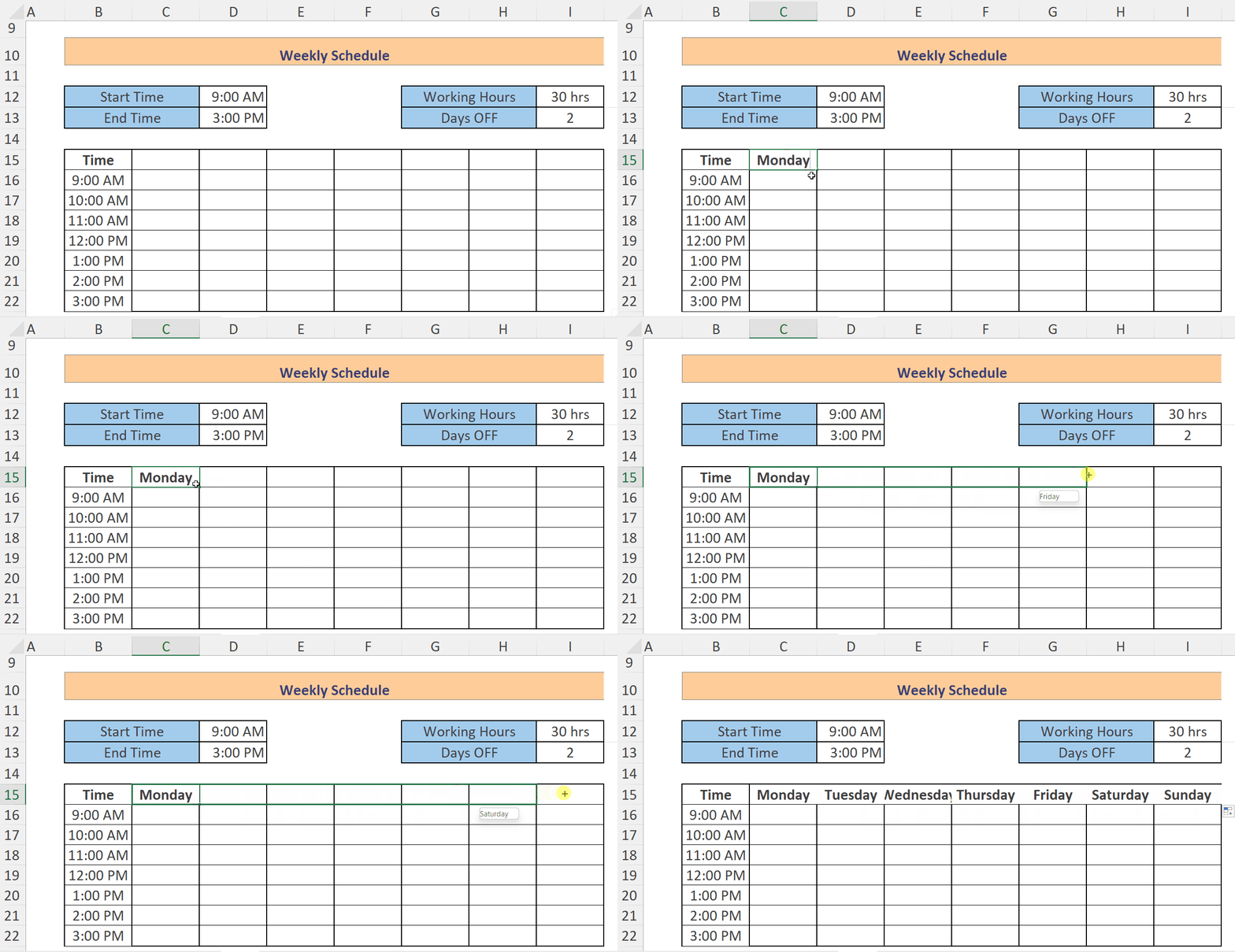
Using Excel for weekly scheduling offers numerous advantages over manual methods. Its ability to store, organize, and manipulate data efficiently makes it a powerful tool for personal, project, and team-based planning. This structured approach enhances productivity by allowing for clear visualization of tasks, deadlines, and dependencies. A well-organized Excel schedule streamlines workflow, reduces errors, and promotes better time management.
Benefits of Excel Scheduling
Excel provides a robust platform for creating weekly schedules due to its versatility and data manipulation capabilities. This structured environment allows for flexible customization and adaptation to diverse needs. Moreover, the ability to easily track progress and adjust tasks as needed is invaluable. These benefits collectively translate to increased efficiency and reduced wasted time.
Types of Weekly Schedules
Different types of schedules cater to various needs. A personal weekly schedule might focus on personal appointments, exercise routines, and leisure activities. Project-based schedules are crucial for managing tasks and deadlines within a specific project, highlighting milestones and dependencies. Team-based schedules are used to coordinate activities and assignments across multiple individuals, often incorporating communication and collaboration aspects.
Importance of a Structured Approach
A structured weekly schedule in Excel promotes a clear overview of tasks and deadlines. This organization allows for better prioritization, delegation, and efficient resource allocation. The ability to easily track progress and identify potential bottlenecks is critical for maintaining a smooth workflow. It also provides a framework for evaluating performance and adapting strategies as needed.
Improving Productivity with a Well-Organized Schedule
A well-organized weekly schedule in Excel significantly contributes to improved productivity. Clear visualization of tasks and deadlines reduces ambiguity and minimizes the likelihood of missed deadlines. By identifying dependencies and prioritizing tasks, the schedule helps individuals and teams focus on the most critical activities. Furthermore, the structured approach allows for better time management and prevents task overload, fostering a more productive work environment.
Basic Table Structure for a Weekly Schedule
A basic weekly schedule in Excel typically comprises four columns:
| Day | Time Slot | Task | Status |
|---|---|---|---|
| Monday | 9:00 AM – 10:00 AM | Meeting with Client | Scheduled |
| Monday | 10:00 AM – 11:00 AM | Prepare Presentation | In Progress |
| Tuesday | 9:00 AM – 10:00 AM | Project Research | Pending |
This simple structure allows for a comprehensive overview of daily tasks, associated times, and their status. Further customization can be implemented by adding more columns for priority levels, assigned personnel, or other relevant details.
Setting Up the Excel Spreadsheet
Creating a well-organized weekly schedule in Excel is crucial for efficient time management. A properly structured spreadsheet will allow you to easily track tasks, deadlines, and priorities. This section details the essential steps for setting up your Excel spreadsheet for effective weekly scheduling.A well-designed Excel spreadsheet for weekly scheduling offers a clear visual representation of your planned activities, allowing you to monitor progress and adjust as needed.
This organized approach enhances productivity and helps you stay on track with your commitments.
Creating a New Spreadsheet
To initiate your weekly scheduling in Excel, open a new spreadsheet. Ensure the spreadsheet is clean and ready for data entry. The blank canvas offers a platform to craft a customized scheduling system that aligns with your needs.
Defining Essential Columns
A robust weekly schedule requires specific columns to effectively categorize and track your activities. These columns provide the structure for organizing your data.
- Day: This column will list the days of the week (e.g., Monday, Tuesday, etc.). This is fundamental for organizing tasks according to the day they are scheduled.
- Time: This column specifies the time slots for each task. It’s vital for scheduling appointments, meetings, and work sessions accurately.
- Task: This column contains a concise description of the task to be performed. The task descriptions should be clear and concise, avoiding ambiguity.
- Priority: This column helps you categorize tasks based on their urgency and importance. Using a simple system like “High,” “Medium,” or “Low” enables prioritization and efficient task management.
- Notes/Description: This column offers space for additional details, context, or specific instructions for each task. It can be used to capture important information about a task that doesn’t fit into the other columns.
- Status: This column tracks the completion status of each task. Options such as “To Do,” “In Progress,” and “Completed” provide a visual representation of your task progress.
Formatting Cells for Different Purposes
Proper formatting enhances the readability and usability of your spreadsheet. Consistent formatting ensures data is easy to understand and interpret.
- Dates: Format the “Day” column as a date format. This ensures the dates are displayed correctly and are easily identifiable.
- Time: Format the “Time” column as a time format. This ensures that the time entries are accurately displayed and easily understood.
- Text: Format the “Task,” “Priority,” “Notes/Description,” and “Status” columns as text. This ensures that text entries are displayed correctly without unexpected formatting issues.
Sample Spreadsheet Layout
The following table demonstrates a sample Excel spreadsheet layout for a weekly schedule.
| Day | Time | Task | Priority | Notes/Description | Status |
|---|---|---|---|---|---|
| Monday | 9:00 AM – 10:00 AM | Plan Weekly Schedule | High | Review tasks, set priorities, and allocate time slots. | To Do |
| Monday | 10:00 AM – 11:00 AM | Project Meeting | High | Attend meeting with team members. | To Do |
| Tuesday | 9:00 AM – 12:00 PM | Client Presentation | High | Prepare and deliver presentation to client. | To Do |
Organizing Data in the Spreadsheet
Several methods can be used to organize data in your spreadsheet. A well-structured spreadsheet facilitates the tracking of tasks, their associated deadlines, and their completion statuses.
- Categorization: Grouping tasks based on project or category can improve organization and help visualize the progression of various tasks.
- Color Coding: Utilizing color coding for different priorities or task types can enhance visual clarity and enable a quicker understanding of task urgency.
- Filtering: Filtering data based on priority, status, or other criteria can isolate specific tasks for focused attention and action.
Entering Schedule Data
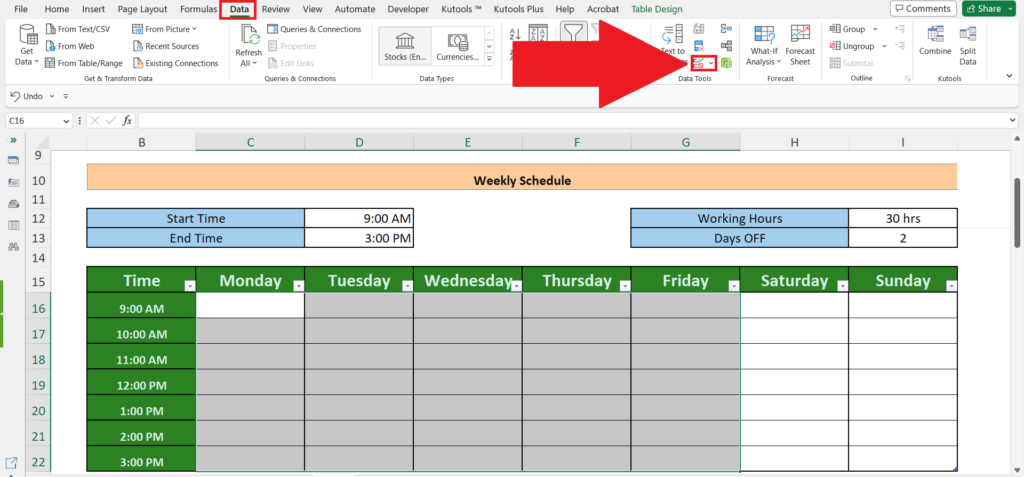
Accurately inputting schedule details is crucial for a functional and effective weekly schedule. This section details the methods for entering tasks, managing recurring events, and automating calculations within your Excel spreadsheet. Precise data entry ensures that your schedule remains organized and up-to-date.Data entry methods directly impact the usability and reliability of your weekly schedule. Efficient methods minimize errors and streamline the process, making it easier to maintain the schedule over time.
The following sections provide clear instructions for inputting data, and strategies for maintaining schedule accuracy.
Methods for Adding and Editing Tasks
Entering tasks can be accomplished through direct typing or using pre-defined templates. For individual tasks, manually typing details into the designated columns is straightforward. For more complex tasks, using templates or pre-filled forms can accelerate the process. Editing tasks is also straightforward; simply locate the task in the spreadsheet and modify the necessary fields. For larger schedules, using a combination of direct entry and templates can optimize efficiency.
Using Formulas and Functions for Automation
Formulas and functions can significantly streamline the scheduling process by automating calculations. For instance, calculating the total time spent on tasks can be automated using the SUM function. To calculate the total time spent on various tasks, use the SUM function in a dedicated column, referencing the duration of each task. For example, if cell A2 contains the duration of task 1 and cell A3 contains the duration of task 2, then =SUM(A2:A3) in cell A4 will return the total duration of the two tasks.
This approach avoids manual summation and reduces the risk of errors. Similarly, other functions can automate calculations for different needs, such as calculating deadlines, total work hours, or project completion dates.
Incorporating Recurring Tasks
Managing recurring tasks is essential for maintaining a comprehensive schedule. Excel provides features for easily incorporating these recurring events. Use the “Fill” feature or the “Autofill” options in Excel to generate a series of identical entries for recurring tasks. For example, to input weekly meetings that occur every Monday, enter the details for the first meeting and then use the “Fill” or “Autofill” option to copy the same details for subsequent weeks.
Consider creating a dedicated row or column for specifying the recurrence pattern (e.g., weekly, monthly, or annually).
Creating Dynamic Schedules with Changing Data
Dynamic schedules adapt to changing data, ensuring your schedule stays relevant. The use of formulas and functions is key in creating such a dynamic schedule. For example, if a task’s duration changes, the corresponding calculations in the spreadsheet will automatically update. The use of cell referencing and formulas can create a self-updating schedule, thus minimizing manual intervention.
By linking data in different cells or using conditional formatting, you can ensure that the entire schedule adjusts automatically. For instance, if the start date of a project changes, all related dates and calculations will be updated without manual changes.
Formatting and Visualizing the Schedule
Enhancing the visual appeal and clarity of your weekly schedule in Excel significantly improves its usability. Proper formatting allows for quick identification of tasks, deadlines, and priorities, streamlining your workflow and reducing errors. Effective visualization techniques can reveal patterns and trends in your workload, helping you anticipate potential bottlenecks and optimize your schedule accordingly.
Formatting Options for Readability
Visual clarity is crucial for effectively managing a weekly schedule. Implementing appropriate formatting options can significantly enhance readability. This involves using different font styles, sizes, and colors to highlight critical tasks and deadlines. Consistent formatting across the schedule ensures a professional and organized look, aiding in quick comprehension.
- Font Styles and Sizes: Employing different font styles (e.g., bold, italic) and sizes can emphasize key information. For instance, use bold for deadlines and italic for recurring tasks. Adjust font sizes for optimal visibility, especially for schedules displayed on larger screens.
- Cell Formatting: Utilize Excel’s cell formatting options to customize the appearance of cells. Adjust alignment (left, center, right), borders (thin, thick, colored), and fill colors to highlight specific information.
- Background Colors: Employing background colors can set the mood and prioritize tasks. Use lighter shades for general entries and darker shades for high-priority tasks, deadlines, or meetings.
Highlighting Important Tasks with Conditional Formatting
Conditional formatting in Excel enables dynamic highlighting of cells based on specific criteria. This feature is incredibly useful for emphasizing critical tasks, deadlines, or entries requiring special attention.
- Highlighting Deadlines: Set up conditional formatting rules to automatically highlight cells containing upcoming deadlines or those approaching. This helps you proactively identify and manage tasks with close deadlines.
- Prioritization: Implement conditional formatting to color-code tasks based on priority levels (e.g., high, medium, low). This visual cue aids in quickly identifying the urgency and importance of various tasks.
- Data Validation: Combine conditional formatting with data validation to enforce rules on entered data. For instance, color-code cells that contain invalid data or fall outside acceptable ranges. This approach provides a visual feedback mechanism to ensure data integrity.
Visualization Techniques
Different visualization methods can provide deeper insights into the weekly schedule, allowing for a more comprehensive understanding of workload patterns.
- Color-Coding: Employing a consistent color scheme to differentiate between different types of tasks (meetings, appointments, work tasks, personal activities) can significantly improve readability and organization. A clear legend will further aid comprehension.
- Icons: Use relevant icons (e.g., a calendar icon for appointments, a checkmark for completed tasks, a warning sign for upcoming deadlines) to enhance the visual appeal and convey information quickly.
- Charts and Graphs: Charts and graphs can represent data trends and patterns, enabling you to visualize workload distribution and identify potential bottlenecks or peak activity periods.
Sample Excel Spreadsheet with Formatted Data and Visualizations
The following table demonstrates a formatted weekly schedule, showcasing the application of various formatting techniques:
| Day | Time | Task | Priority | Status |
|---|---|---|---|---|
| Monday | 9:00 AM – 10:00 AM | Project Meeting | High | Pending |
| Monday | 10:00 AM – 12:00 PM | Report Writing | Medium | In Progress |
| Monday | 12:00 PM – 1:00 PM | Lunch | Low | Completed |
| Tuesday | 9:00 AM – 10:00 AM | Client Presentation | High | Scheduled |
Using Charts and Graphs to Visualize Schedule Data
Charts and graphs provide a visual representation of schedule data, allowing for the identification of patterns and trends. A bar chart, for instance, can illustrate the distribution of tasks across the week, while a pie chart can show the proportion of tasks allocated to different projects or categories.
Managing and Modifying the Schedule
Maintaining a weekly schedule in Excel involves more than just creating it. Effective management allows for flexibility and adaptability as priorities and tasks change. This section details strategies for modifying the schedule, handling unexpected events, prioritizing tasks, and ensuring the schedule remains organized.Adaptability is key to a successful weekly schedule. A well-structured Excel sheet, combined with flexible modification techniques, will help you navigate the inevitable shifts and changes that life throws your way.
Methods for Easy Modification
Updating a weekly schedule in Excel should be straightforward. Use the built-in features to modify entries quickly. For example, directly changing the time or task description in the relevant cell is often the simplest approach. For larger modifications, consider using Excel’s “Find and Replace” function to locate and alter multiple instances of a similar task or time slot.
This feature is invaluable when adapting the entire schedule to accommodate changes.
Handling Unexpected Changes
Unexpected events, such as meetings or urgent requests, necessitate quick schedule adjustments. Using conditional formatting in Excel can highlight these entries. For example, you can color-code tasks that are subject to change or have a higher priority. This allows for a quick visual check when dealing with unforeseen circumstances. Allocate buffer time in your schedule for unexpected interruptions.
Prioritizing Tasks
Prioritization is crucial for managing a weekly schedule effectively. Use a numerical or color-coded system to rank tasks. For instance, assign a numerical value (1 being the highest priority) to each task. Using conditional formatting to visually represent priorities in the schedule (e.g., red for high priority, yellow for medium, green for low) is helpful for quick visual assessments.
Consider using a separate column to denote the priority level.
Maintaining Organization
As needs evolve, maintaining schedule organization is vital. Regular review and adjustments are essential to ensure the schedule stays relevant. Use Excel’s sorting features to arrange tasks chronologically or by priority. For example, sort the schedule alphabetically by task name or chronologically by start time. This ensures that the most crucial tasks are easily visible and that the schedule remains coherent.
Using Filters and Sorting
Filters and sorting significantly enhance the efficiency of locating specific tasks. Excel’s filter tool allows you to quickly isolate tasks based on criteria such as project, person assigned, or priority level. For example, filter for all tasks related to a particular project or all tasks assigned to a specific person. Sorting enables tasks to be organized in a specific order, such as by date, time, or priority.
These features are crucial for quickly identifying tasks and streamlining workflow.
Advanced Scheduling Techniques
Leveraging Excel’s capabilities beyond basic scheduling allows for more complex project management. This section explores advanced techniques for handling multiple dependencies, incorporating external data, automating reminders, creating team schedules, and adapting to shifting priorities. These methods will enhance your schedule’s flexibility and efficiency.Understanding and applying these advanced techniques can significantly improve the accuracy and effectiveness of your scheduling process.
By integrating external data, automating reminders, and designing team-based schedules, you create a more dynamic and manageable system. This improved approach also allows for greater adaptability to evolving project requirements and priorities.
Managing Projects with Multiple Dependencies
Effective scheduling for projects with interconnected tasks requires careful planning. Excel’s features, including formulas and conditional formatting, are invaluable in this context. By identifying and documenting dependencies, you can ensure tasks are completed in the correct order. This is especially crucial for projects with significant interdependencies. A well-defined dependency structure ensures that no task is initiated before its prerequisite tasks are finalized.
Incorporating External Data Sources
Many projects rely on data from external sources, such as customer databases or project management tools. Excel allows for the integration of this external data. This can be achieved through various methods, including using external data connections. These connections enable automatic updates from the source to the Excel schedule, ensuring data accuracy.
Automating Reminders
Excel’s features provide ways to automate reminders for scheduled tasks or events. This can be done through conditional formatting, notifications, and custom VBA macros. Automated reminders help maintain project momentum and keep stakeholders informed of deadlines. These automated tools save significant time by reducing manual reminders and notifications.
Creating Schedules for Teams and Projects
Team schedules, often involving overlapping tasks and individual commitments, can be efficiently managed within Excel. This involves using different colors, conditional formatting, and dedicated columns for team member names, task assignments, and availability. These features can create a visual representation of the team’s workload and potential conflicts.
Adapting to Changing Priorities
Project priorities frequently change, requiring flexibility in the schedule. Using Excel’s dynamic features, such as formulas and pivot tables, allows for adjustments to be reflected across the schedule. By creating adaptable formulas, changes to priorities will be immediately reflected, allowing for quick responses to evolving project requirements.
Sharing and Collaboration

Sharing your meticulously crafted weekly schedule in Excel can significantly enhance team productivity and communication. Collaborating with others allows for real-time updates and ensures everyone is on the same page regarding tasks, deadlines, and responsibilities. This section will explore various methods for sharing and collaborating on your Excel schedules, ensuring everyone has access to the most up-to-date information.Effective collaboration hinges on clear and secure access controls.
This involves understanding different sharing options and implementing appropriate security measures to protect sensitive data within the shared schedule.
Methods for Sharing Excel Schedules
Sharing your Excel schedule allows team members to access and potentially modify it. Choosing the right method depends on the level of access you want to grant.
- Emailing a Copy: A straightforward method, especially for smaller teams. You can email a copy of the spreadsheet to each individual. However, this method lacks real-time updates and doesn’t facilitate concurrent editing.
- Sharing via a Cloud Service: Cloud services like Google Drive or Microsoft OneDrive allow multiple users to access and edit the same file simultaneously. This approach fosters collaboration and ensures everyone works with the most current version. Real-time updates and version control are significant benefits of this approach.
- Sharing Directly within Excel: Excel offers built-in sharing options. This can be ideal for collaborative teams that need to work on the spreadsheet together in real-time. It allows for simultaneous editing and automatic version control. This approach fosters a dynamic collaborative environment.
Creating Read-Only and Editable Copies
Controlling access to your schedule is crucial. Different levels of access can be assigned to various team members, protecting sensitive data and promoting effective collaboration.
- Read-Only Copies: Create a read-only copy of your schedule for team members who only need to view the information. This prevents accidental modifications and ensures data integrity. This is ideal for distributing the schedule for general awareness without allowing editing.
- Editable Copies: For team members needing to contribute to the schedule, create editable copies. This allows them to add, modify, or update tasks and deadlines. This enables direct contribution and real-time updates. Permissions need to be set correctly to prevent unintended modifications and ensure data integrity.
Collaborative Editing Techniques
Different collaborative approaches can optimize the effectiveness of working on a shared Excel schedule.
- Using Comments: Incorporate comments within the spreadsheet to discuss changes or ask questions. This facilitates communication and keeps track of modifications. This is a useful tool for managing discussion and clarification of tasks.
- Version History: Excel (and cloud-based platforms) often maintain a history of changes. This feature helps revert to previous versions if needed and understand the modifications made. This feature is crucial for tracking the evolution of the schedule and ensuring accountability.
- Using Checklists or Tasks: Integrate checklists or task management features into the schedule for better organization. This allows for clear visual tracking of completed tasks and ongoing work. This fosters clear visual representation and status updates.
Using Different Sharing Options in Excel
Excel offers a variety of sharing options to tailor access controls for different users. Understanding these options is essential for managing access and security.
- Sharing with Specific Users: Excel allows you to share your schedule with specific individuals by providing their email addresses. This provides a granular level of control, ensuring only authorized personnel can access the schedule.
- Creating a Link: Creating a link to the shared schedule can be an alternative way to share the spreadsheet. This allows access via a web-based interface. This provides flexible and convenient access for remote team members.
- Password Protection: Protect your schedule with a password to restrict access. This is a crucial security measure to safeguard sensitive data. This option enhances data security by limiting access to only authorized personnel.
Protecting Sensitive Data in Shared Schedules
Protecting sensitive data in shared schedules is paramount. Implementing appropriate measures ensures confidentiality and data integrity.
- Restricting Editing Permissions: Granting only necessary editing permissions to team members prevents unauthorized modifications to the schedule. This is a crucial step in data protection.
- Using Data Validation: Data validation rules in Excel can restrict the type of data entered, reducing the likelihood of errors and ensuring data integrity. This measure ensures accuracy and reliability of the schedule’s content.
- Regularly Reviewing and Updating Access Rights: Regularly review and update access rights to reflect changes in team roles and responsibilities. This keeps the access controls current and avoids potential security breaches. This ensures that the schedule’s access reflects the current team structure.
Troubleshooting Common Issues
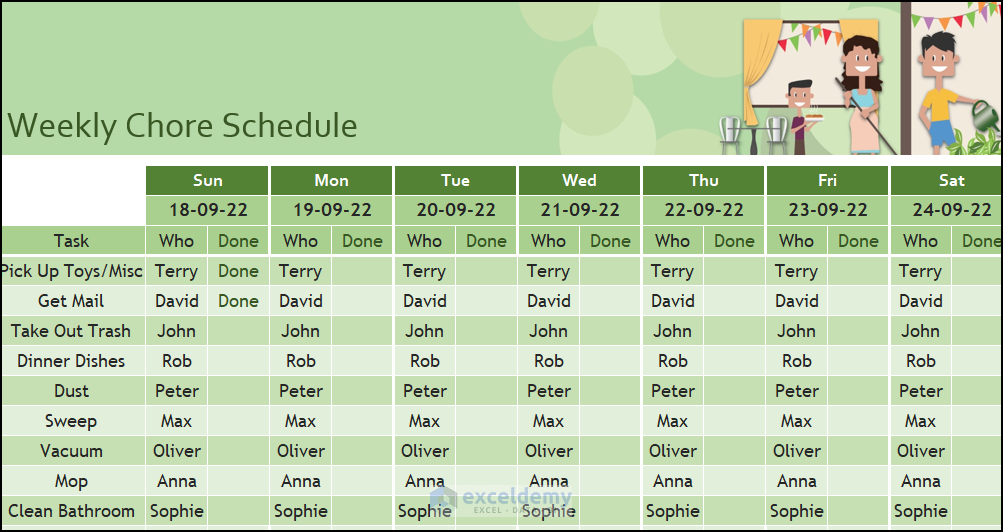
Troubleshooting potential problems in your Excel scheduling is crucial for maintaining accuracy and avoiding costly delays or missed appointments. This section details common issues and their resolutions, ensuring a smooth and efficient scheduling process.
Data Validation Errors
Data validation ensures that the data entered into the spreadsheet adheres to predefined rules. Incorrect data formats or values can lead to inconsistencies and errors in the schedule. Excel provides built-in tools to validate data, preventing invalid entries. For example, if a cell is designated for start times, validation can enforce that the entry is a time format.
Likewise, if a cell represents a room, the data should match a list of available rooms. Implementing validation rules in advance significantly reduces potential errors.
Formula Errors
Excel formulas are essential for calculating durations, scheduling conflicts, and other aspects of the schedule. Errors in formulas can lead to inaccurate calculations and scheduling conflicts. A common error is incorrect cell referencing, which can easily be corrected by verifying the correct cell addresses within the formulas. Using the “Evaluate Formula” feature can help isolate the source of the error.
For instance, if a formula for calculating total work hours is returning an incorrect result, review the cell references to ensure they are pointing to the correct cells containing the hours worked.
Conflicts in Shared Schedules
Shared schedules can present unique challenges. Conflicting entries can arise when multiple users attempt to modify the schedule concurrently. Utilizing features like version control or locking cells during edits can prevent conflicts. Implementing a clear communication protocol between users, especially when changes are anticipated, can significantly mitigate potential issues. For example, if two employees try to book the same conference room at the same time, a conflict alert can be implemented, prompting one of them to reschedule.
Data Inconsistencies
Inconsistencies in the data can arise from various sources, such as typos or outdated information. Regular data validation and verification procedures can mitigate these problems. Manual review of the data is vital, especially for large schedules. For instance, if a participant’s name is entered incorrectly, it can lead to problems with follow-up and communication. Data consistency checks should be incorporated into the workflow, either manually or through automatic procedures.
Accidental Data Loss
Accidental data loss can be devastating, but Excel offers methods for recovery. Regularly backing up the spreadsheet is a crucial preventative measure. Saving frequently and utilizing cloud storage or external drives to create copies of the spreadsheet is essential for safeguarding data. If data loss occurs, restore from the most recent backup. In case of accidental deletion, utilizing the “Undo” function or the “Recovery” feature in Excel can help retrieve deleted data.
These steps minimize the risk of irreversible data loss.
Resolving Conflicts in Shared Schedules
Multiple users editing a shared schedule concurrently can lead to conflicts. Implementing version control allows for tracking changes and reverting to previous versions. Locking cells or ranges during editing prevents simultaneous modification, while clear communication channels facilitate collaborative scheduling. For example, a chat group or a dedicated discussion thread can address conflicts in real-time.
Handling Data Inconsistencies
Data inconsistencies, like typos or incorrect values, can impact the accuracy of the schedule. Employing data validation rules, like specifying date or time formats, can help catch errors during data entry. Implementing regular data checks and review procedures can help identify and rectify inconsistencies before they affect the schedule. For example, if a room number is entered incorrectly, it can lead to confusion and misallocation.
Regularly reviewing and updating the data prevents such problems.
Wrap-Up
In conclusion, this guide has demonstrated the power of Excel in facilitating effective weekly scheduling. By mastering the techniques presented, you can streamline your workflow, enhance productivity, and effectively manage your time and tasks. The detailed explanations, practical examples, and advanced techniques provided will empower you to create and maintain personalized schedules that adapt to your evolving needs.